
Installation
This tutorial will teach you how to install, configure, and use SRA.
1. Download & Installation
Go to the Download page to select the appropriate node and version for download.
Warning
Although SRA CE theoretically doesn't require a runtime environment, it actually still needs Microsoft Edge WebView2.
If you find it cannot run, it may be due to the absence of this environment.
This program can theoretically run on Windows 7/8/8.1, but the Python backend compatibility is unknown.
Installer
After downloading, open it in your browser's download window or file explorer. Follow the instructions to complete the installation.
After installation, search for StarRailAssistant in the Start menu to see the program.
2. Add to Trust List
Visit the official SRA website introduction page to see how to add trust.
3. Interface
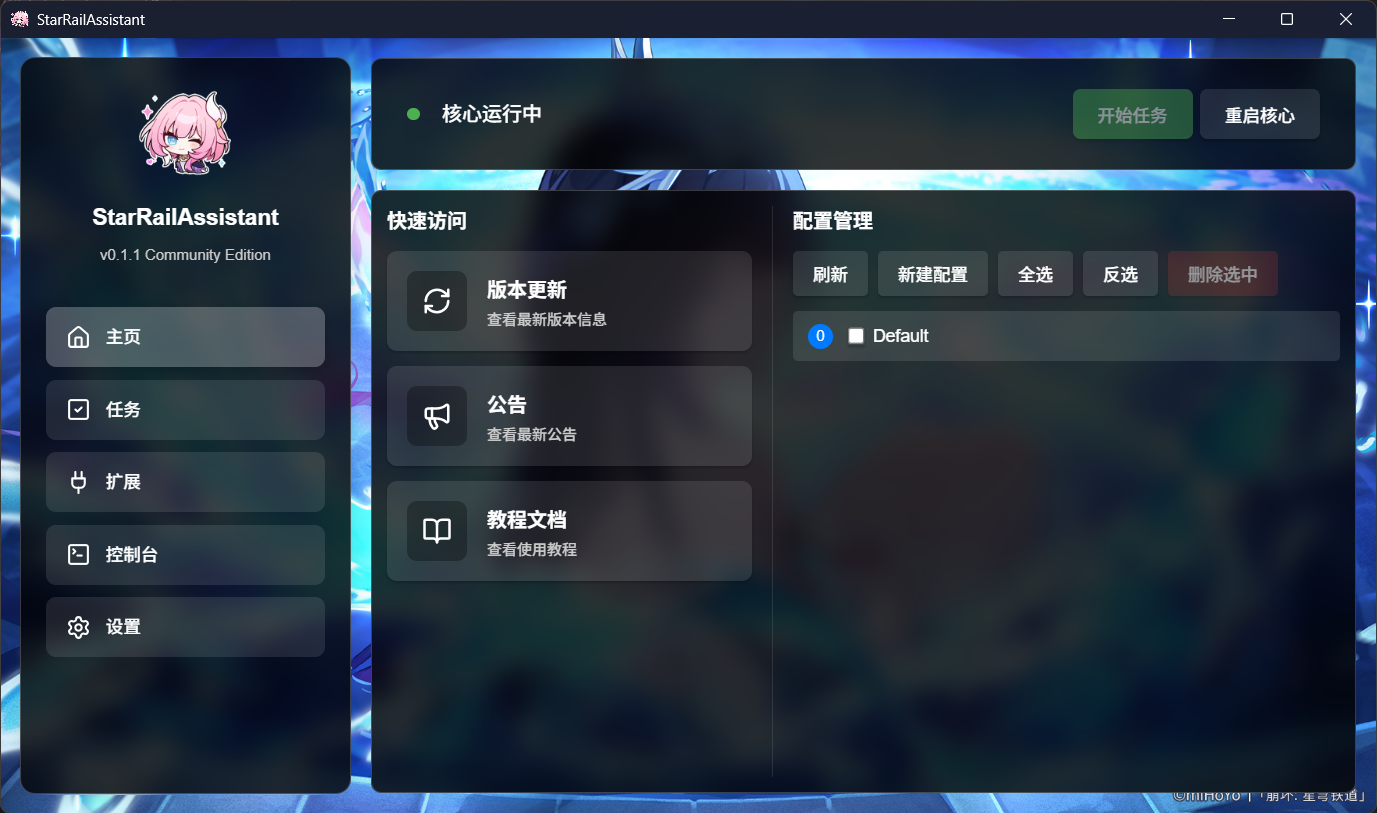
- Left side: Navigation bar
- Right side: Main content
Currently showing the homepage content, click other options to switch to other pages.
- Header: Shows the backend (SRA-cli) running status, running tasks, and restart backend (SRA-cli).
- Quick Access: Provides options for users to quickly access
- Configuration Management: Can create new configurations, select configurations, and delete configurations.
4. Task Configuration
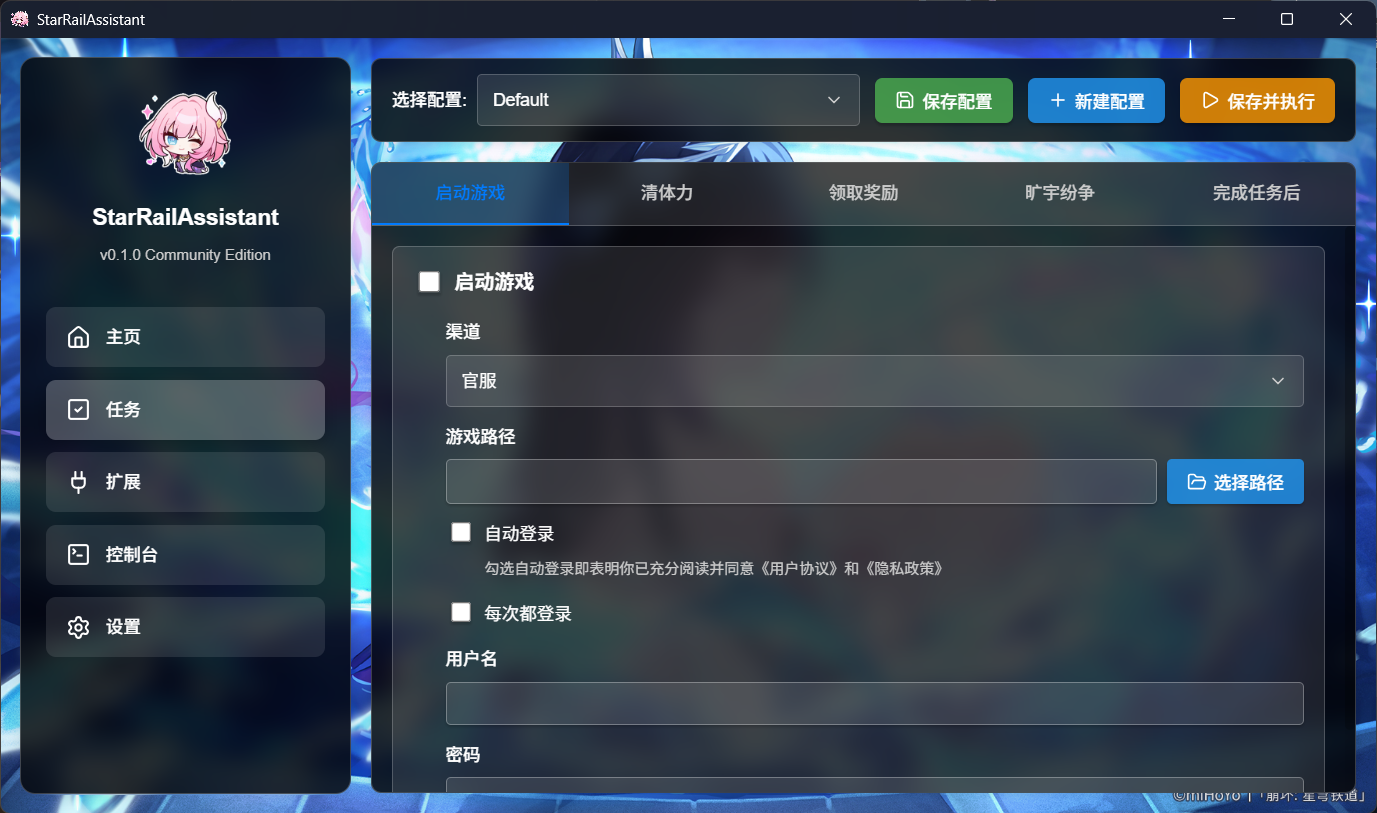
This step is no different from the official SRA configuration steps. You can save configurations, create new configurations, and execute configurations through the buttons above.
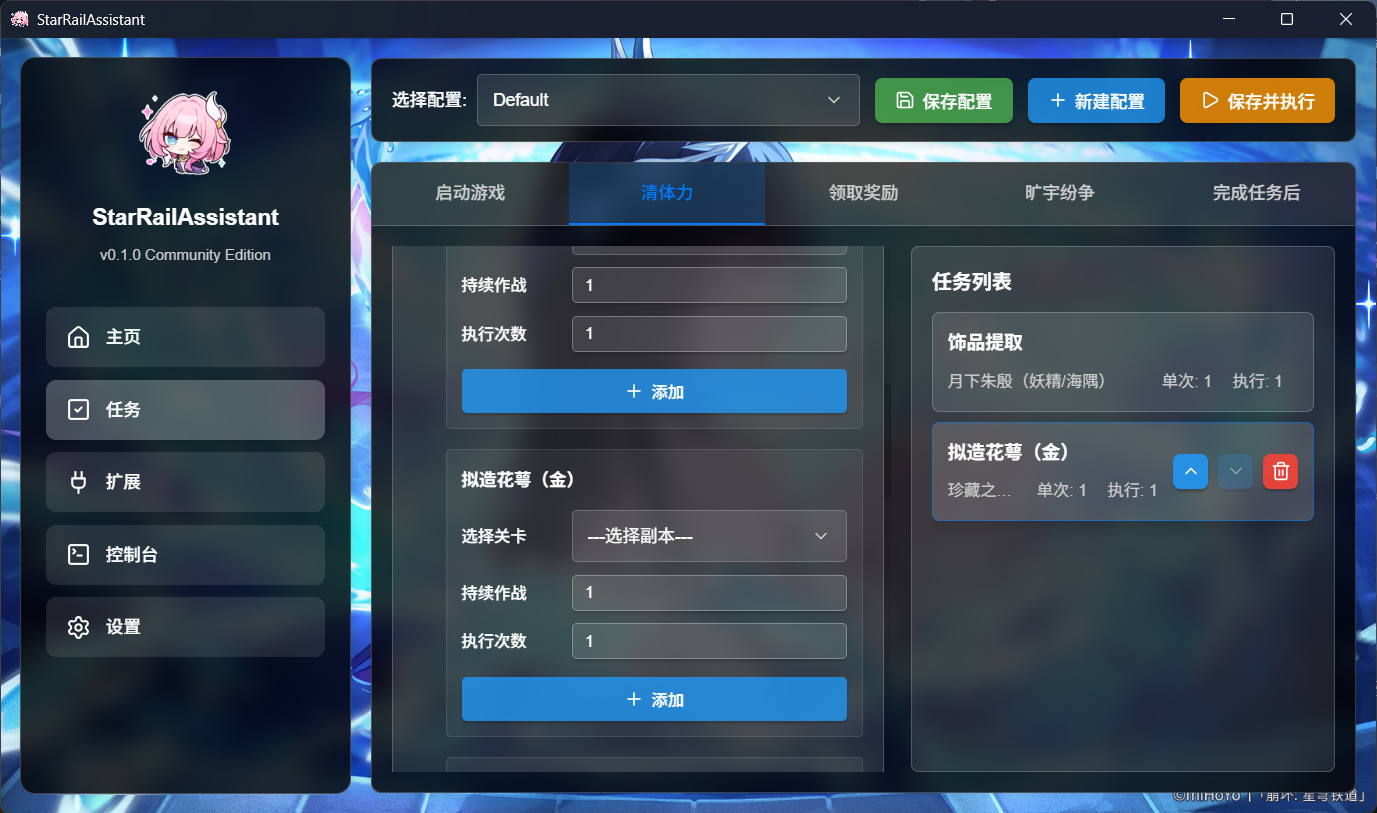
Unlike the original, in the Task List, you can move your mouse over specific tasks to perform up and down movement operations.
Cosmic Strife
This configuration item is the same as the original SRA. Clear other tasks, open this interface in the game, and select start execution.
Currency Wars also supports takeover mode. To execute Currency Wars tasks in takeover mode, you must be at the preparation stage interface of Currency Wars, ensuring the shop interface is closed.
5. Execute Tasks
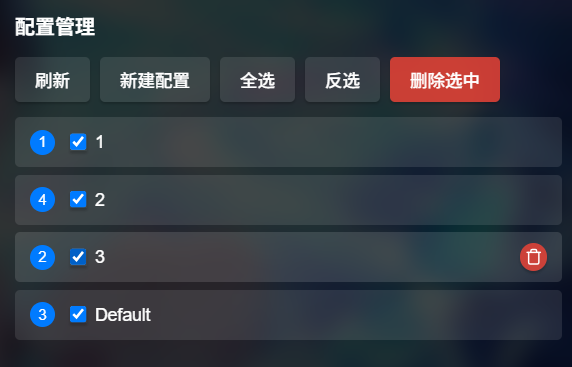
You can select the order of tasks to execute here, then click Start Task above to begin execution.
During execution, SRA will actively ensure the Honkai: Star Rail window is in the active state. Unless you terminate the task, it's not recommended to switch windows.
Note
The official SRA version (below v2.0) supports F9 to quickly end tasks, but currently the 2.0 SRA and SRA-CE up to now still don't support hotkeys.