
Advanced Usage
This content will lead you to a more comprehensive and detailed understanding of how to use SRA.
1. Multi-Account Management
Each configuration scheme represents a hosting scheme for one account.
When executing multiple configurations, please follow these operations:
- If multiple configuration files are selected, configurations that are ranked first (i.e., not the last one in the order) cannot configure:
- Simulated Universe
- Exit Game
- Exit SRA
- Shutdown
- Sleep
Must configure:
Start Game->Game Path,Auto Login(and enter your account)After Completion->Exit Current Account
- After completing task configuration, click
Save Configto save.
Note
SRA-CE currently doesn't support saving configurations through Switch Config or Close Window. You can restore your configured content this way.
To make
Multi-Configrun as expected, it's recommended to log out and enter the Select phone number to enter game interfaceThen, return to the homepage, check the tasks you want to execute (or click Select All) to start.
Note
Unlike the original version, the Select All function is arranged in alphabetical order (the official All is arranged in the order of configuration creation). In this case, it's recommended to check manually.
2. Extensions
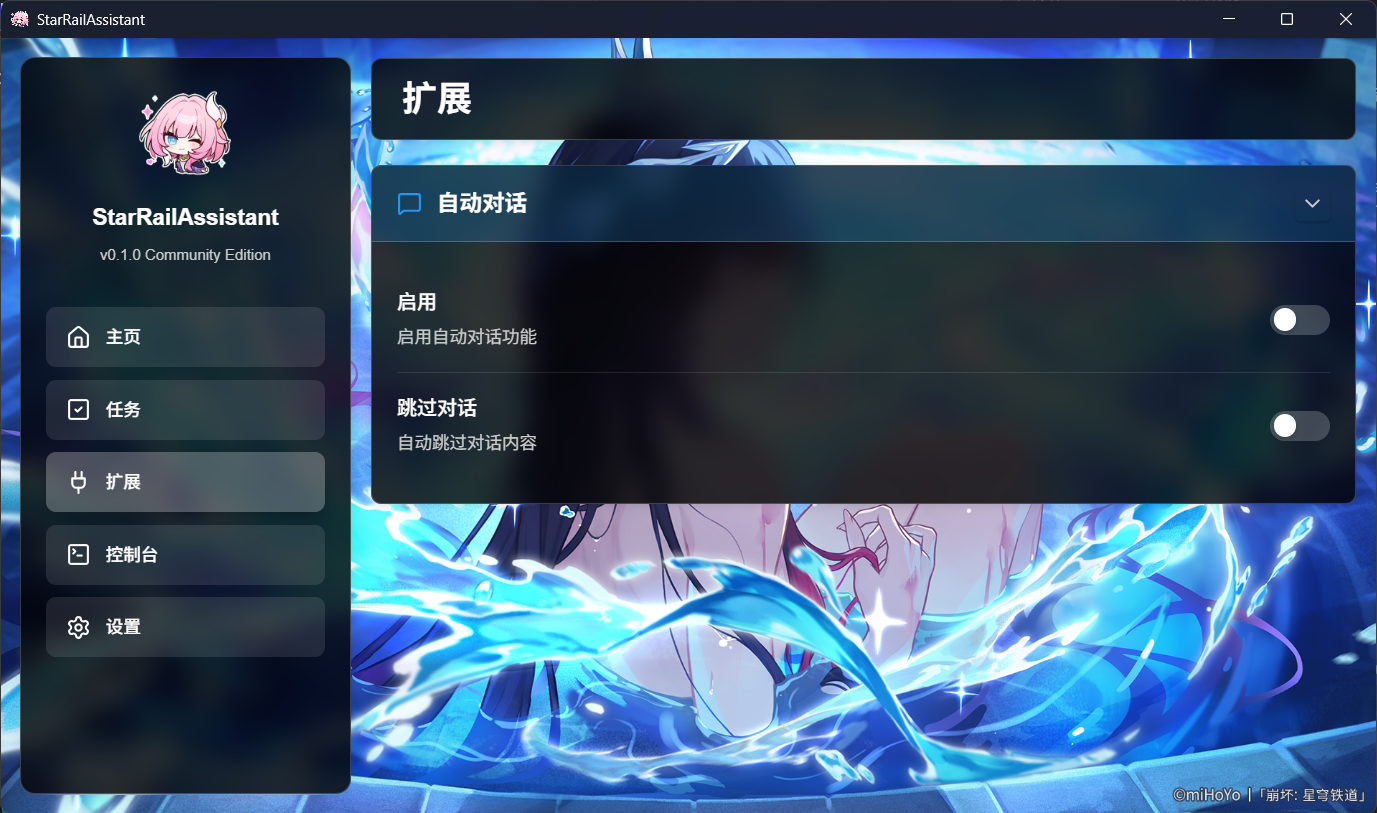 Like the original version, extensions currently only support auto dialogue.
Auto Dialogue: When enabled, it will automatically play dialogue and automatically select dialogue options when entering storylines. This feature does not control the mouse but will keep the game in the foreground. If you need to cancel execution, try minimizing the game and return to this page to uncheck. Skip Dialogue: Auto dialogue must be enabled first. When enabled, it will automatically skip skippable dialogue when entering storylines.
Extension features will execute immediately after being enabled until unchecked.
3. Updates
In the Quick Access on the Homepage, click Version Update to enter.
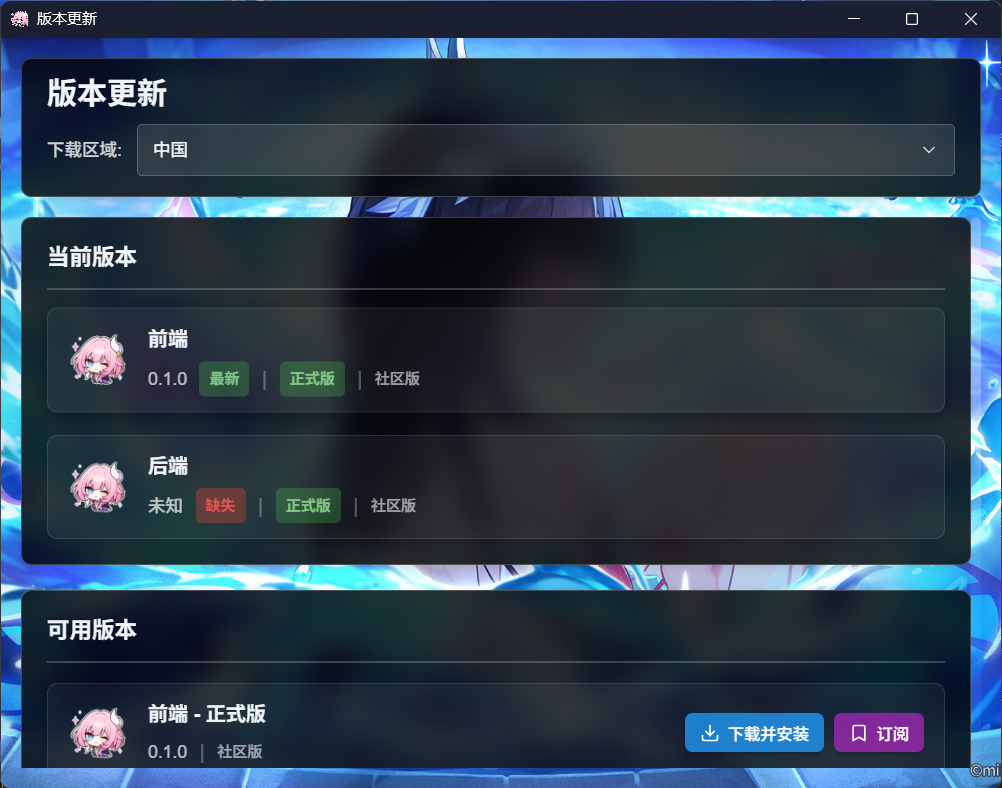
Download Region: Default is China, overseas should theoretically work (due to using CloudFlare, actual use might even be faster than domestic); Global link is the file link in GitHub ReleaseDownload and Install: The program will automatically download and restart installation. After download completion, the program will ask you to manually click restart program.Subscribe: Subscribe to this version, you will be notified when there are updates at program startup. If not subscribed, it will automatically compare with the official version.
Tip
If both frontend and backend have updates for the same channel (e.g., official version), it's recommended to download and install the frontend first, as the frontend may include backend updates.
4. Console
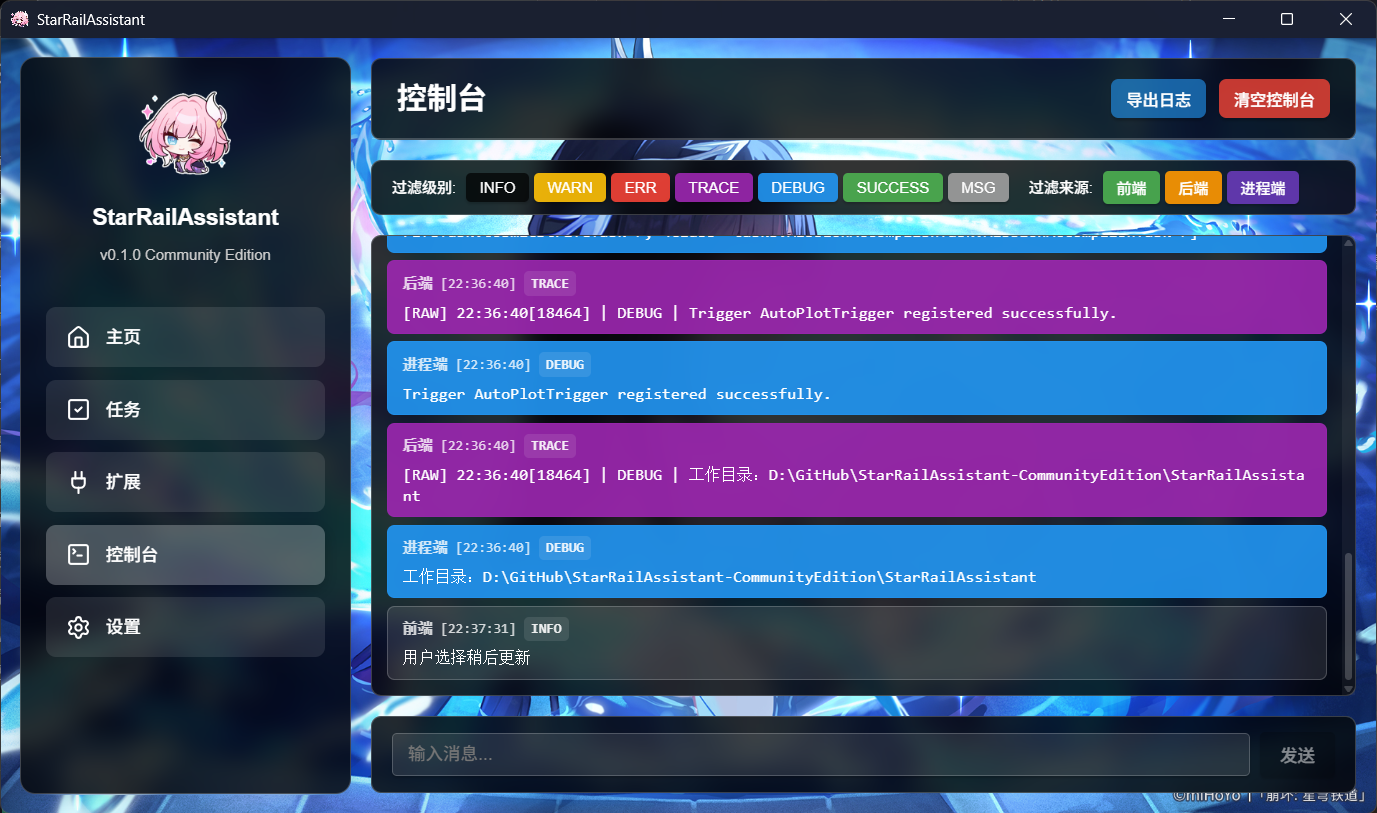
In the console, we added features different from the original version:
- Export Logs: Select logs for export
- Filter: Additionally supports filtering for frontend, backend, and process. If you need to report issues to the original SRA, it's recommended to turn off frontend and backend, keeping the original output of
SRA-cli. Additionally, it's recommended to filterTRACElevel information. - Clear Console: Literally, clear all content in the console
5. Settings
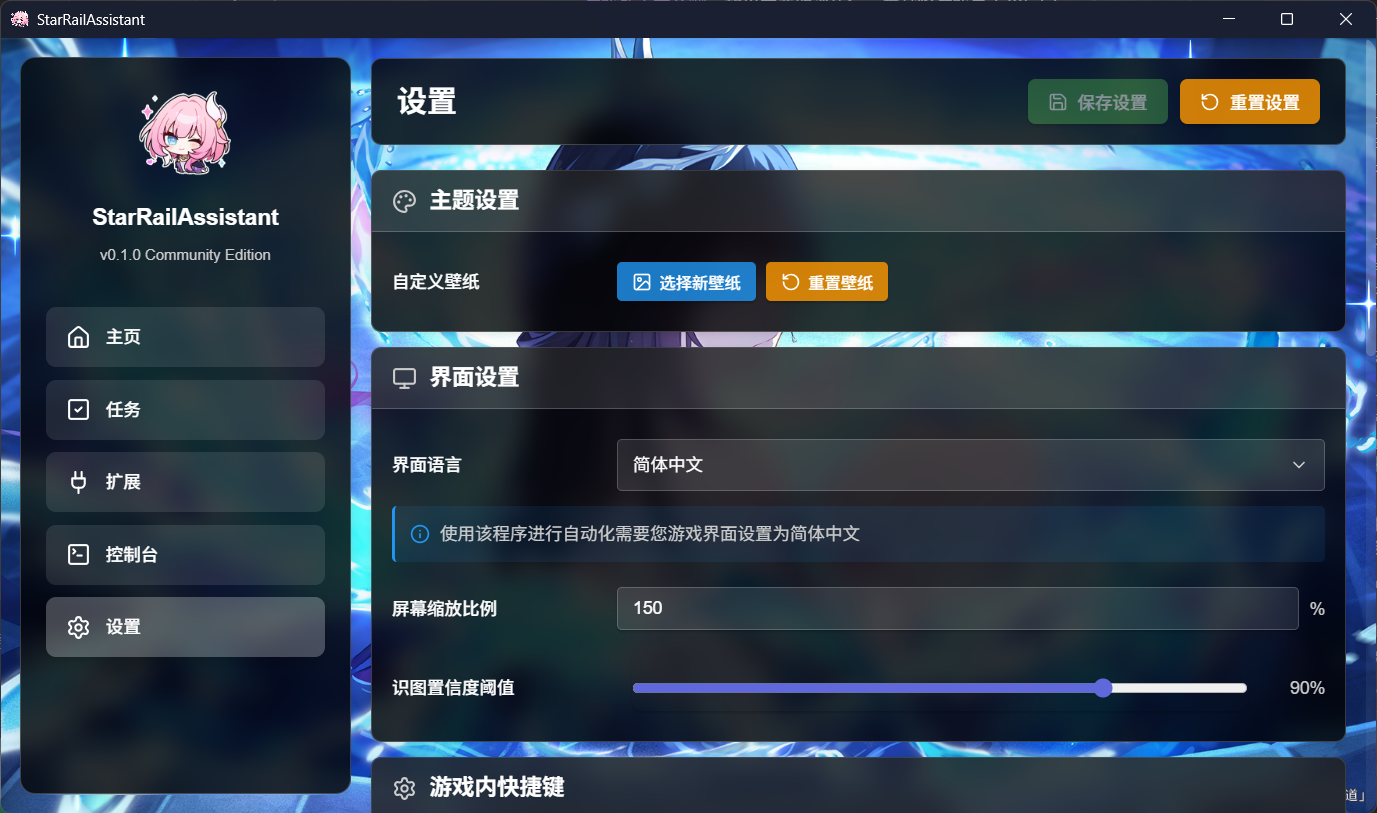
You can change SRA settings and SRA-cli settings here.
Some settings are shared between original SRA and community edition SRA, but community edition SRA won't touch original SRA settings when changing settings, and will initialize original SRA settings during initialization.
- Custom Wallpaper
Click Select New Wallpaper to select a new wallpaper to replace the original; click Reset Wallpaper to reset to the original wallpaper.
- Interface Settings
- Interface Language: Switch display language
Note
- Currently, the program backend doesn't support English yet.
- Using this program for automation still requires adjusting the game interface to
Simplified Chinese.
Screen Scaling Ratio: Fill in your screen's scaling ratio here. You can find it by right-clicking on desktop ->
Display Settings.Image Recognition Confidence Threshold: Controls the strictness of the application's recognition of in-game elements. Default value is 0.90 (90%), adjustable between 0~1, with increments/decrements of 0.01. Higher values mean more precise recognition (reducing false recognition); lower values mean broader recognition range (may cause false recognition).
Notification Management
Allow Notifications: Master switch, must be enabled to receive various notifications from the application (enabled by default); when disabled, all notifications will be blocked.
System Notifications: When enabled, the application will send reminders through system popups (such as update notifications, task completion prompts, enabled by default).
Email Notifications: When enabled, the application will send important information via email (such as exception reminders, disabled by default), requires pre-configuring the receiving email. You can refer to the official SRA page for configuration.